
Videos and tutorials / nCloud Connect
Call statistics and reporting for nCloud Connect
The five call reports in the nCloud Connect admin portal, what each one shows, and how to export and schedule them.
Getting started
NetCarrier has introduced a new suite of reporting features to the nCloud Connect platform as of
Summer 2023
These reports are found on the new ‘Call Statistics’ page found under the ‘Reports’ tab on the admin portal side menu and include the following:
Call Direction report Call History report Call Status report Auto Attendant report Ring Group report
To run any given report, simply select the type of report from the dropdown menu, enter your search parameters, and press the ‘Search’ button.
Exports
Once a report has been run, the results can be exported as well. Export formats differ between the various reports and will be noted in the report detail below. To export a report, press the ‘Export’ button that appears on the right side above the report data. Exports may take a moment to complete and their status can be tracked from the ‘Export List’ button. Once complete, the file will be available to download from the Export List along with other recently run reports.
Scheduling reports
All 5 report types can be scheduled to be run and emailed on a daily, weekly, or monthly basis. To schedule a report, press the ‘Schedule Report’ button on the top right and fill out the fields accordingly:
Name Status – only active reports will be run and sent out Day – This is where the reporting interval is set.
- For a daily report, select ‘Everyday’
- For a weekly report, select one of the named days of the week to have the weekly report run and sent on that day.
- For a monthly report, select ‘Monthly’
Report Type Schedule emails – This is where to enter any email addresses the report should be sent to when complete
A notification with a download link will be emailed to the designated email addresses when a scheduled report completes.
Call direction report
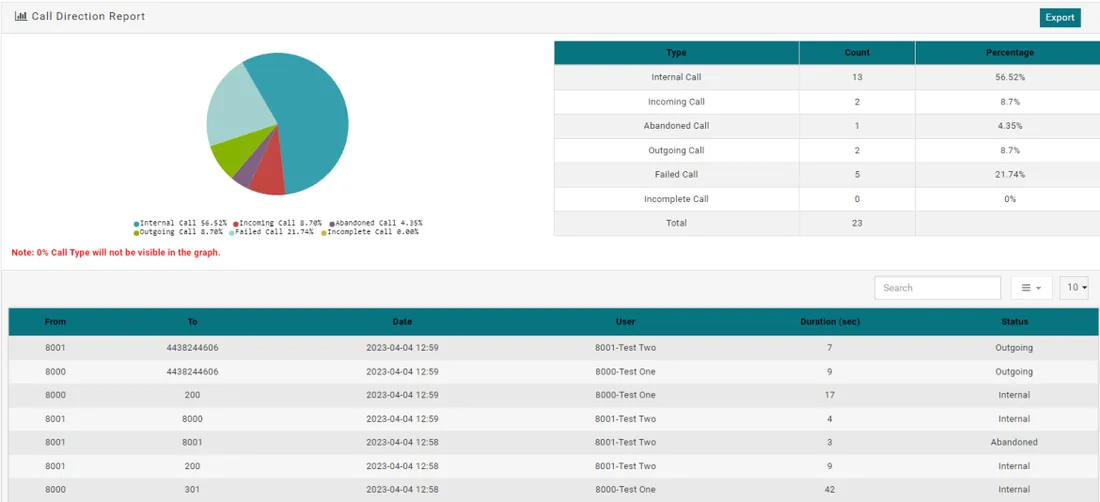
This report breaks down call volume by direction and status. Calls are categorized into the following categories:
Internal calls Incoming calls Outgoing calls Failed calls Incomplete calls
Results are displayed as a pie chart, a table, and call by call table that includes callers and destinations, timestamps, call duration, and the classification of the call from the above list.
Exports are available in .PDF or .CSV formats.
Auto attendant report
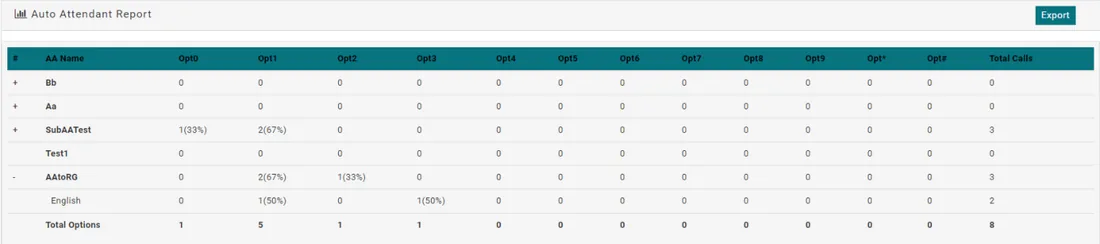
This report tracks how many times different options on a given auto attendant are selected by callers.
Search parameters can filter results by Date/Time or by Auto Attendant.
Results are displayed in a table showing call counts by option as well as a percentage of total call volume to that AA. Results are expandable to show similar statistics for AA Submenus as well.
Exports are available in .PDF format only.
Call history report
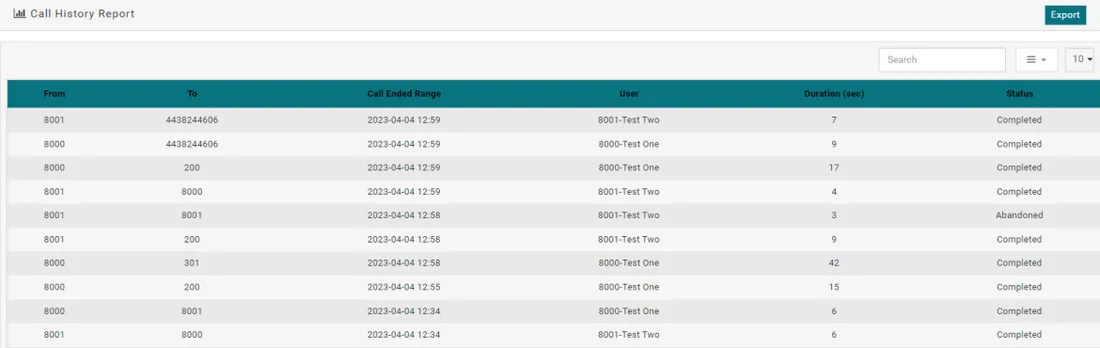
This report is a slimmed down CDR report that shows calls on the server with a select amount of information including:
From/To Call ended User Call duration Call status
Results are displayed as a table.
Exports are available in .CSV format only.
Call status report
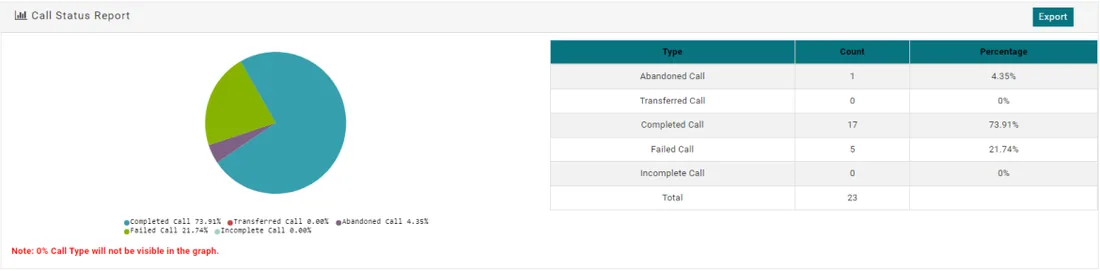
This report breaks down calls by status, which in this context means a description of how the call ended. It classifies calls into the following categories:
Transferred calls Completed calls Failed calls Incomplete calls
Results are displayed as a pie chart and a table.
Exports are available in .PDF format only.
Ring group report

This report tracks call volume statistics specifically for Ring Groups. It provides call counts within the following categories:
Total Calls Answered Calls Fallback Calls Answered Fallback Calls Abandoned
Search parameters can filter results by Date/Time and by Ring Group Results are displayed as a table. If data for more than one Ring Group is included in the search, results broken down by ring group will be displayed as a table as well.
Exports are available in .CSV format only.
If you have any further questions, concerns, or issues using the new Call Statistics reports please reach out to our Tech Support team at helpdesk@netcarrier.com or by phone at 877-255-7733
Still stuck?
Our U.S.-based support team answers 24/7/365.