
Customer support & escalations
Not getting the result you need? Find your topic below and escalate in order.
| Topic | Step 1 | Step 2 | Step 3 |
|---|---|---|---|
| Service and supportOutages, service issues and open tickets | 1Customer Support Supervisorscustomerservice | 2Chris RiccioDirector, Customer Supportchristopher.riccio@ | 3Laura BellaVice President, Business Operationslbella@ |
| Orders and installationNew orders, installations and go-live | 1Implementationimplementation@ | 2Laura GrazioseDirector, Customer Operationslgraziose@ | |
| BillingInvoices, billing questions and credits | 1Account Servicesaccountservices@ | 2Laura GrazioseDirector, Customer Operationslgraziose@ | |
| CollectionsPayments and past-due balances | 1AR & CollectionsARcollections@ | 2Laura GrazioseDirector, Customer Operationslgraziose@ | |
| Customer success and account managementOngoing account health and retention | 1Customer Successcustomersuccess@ | 2Laura BellaVice President, Business Operationslbella@ | |
| Voice and network engineeringAdvanced voice, network and data issues | 1Voice Engineeringvoiceengineering@ | 2Bryant JonesNetwork Engineering Supervisornetworkengineering@ | 3Michael BilykSr. Director, Technical Operationsbilykm@ |
| ConnectSmart AIAI voice agents, call flows and automation | 1AI Design TeamAIdesignteam@ | 2Michael KokerSr. Director, AI & Product Strategymichael.koker@ | |
| SalesNew services, pricing and agreements | 1Aaron LaamSr. Director, Salesaaron.laam@ | 2Jason RuthChief Revenue Officerjason.ruth@ |
One portal for billing and your account
NetCarrier has moved to a new billing system. The separate Pay Online site and the older Customer Portal are replaced by a single customer billing portal, so your invoices, payments, payment methods and account details now live in one place.
Find it
Go to netcarrier.com and select Login > Customer billing portal, or go straight to myportal.
Pay and track
See your balance, unbilled charges and open invoices, review payment history and pay by card or e-check.
Manage your account
Save payment methods, update billing and service addresses, add billing contacts, set your security PIN and change your password.
Understanding your invoice
Your invoice at a glance
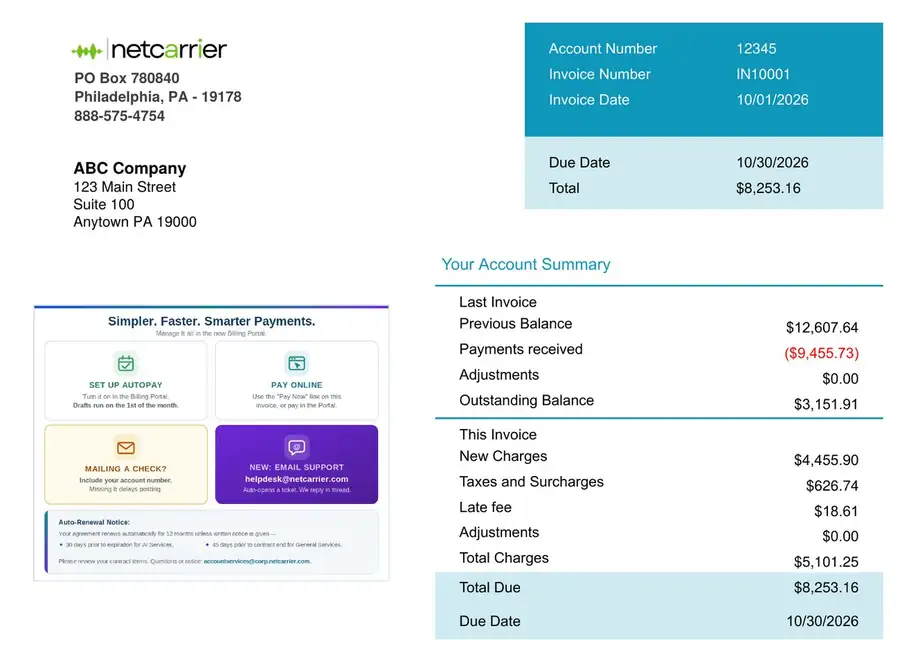 1234567
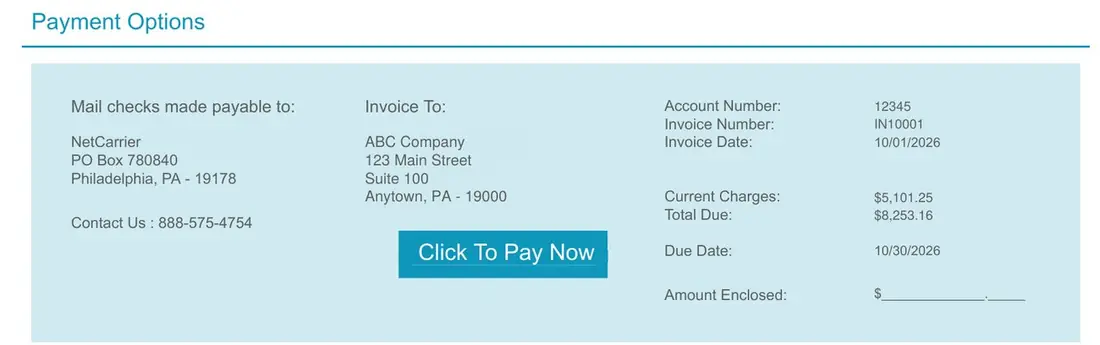 89
- Account number, invoice number and date. Have your account number handy whenever you call or pay.
- Due date and total. The full amount due and the date it’s due.
- Billing address. Where we send your invoice. You can update it in the portal under Profile.
- Messages from NetCarrier. Payment tips, support contacts and notices about your agreement.
- Last invoice. Your previous balance, payments received since then and any adjustments. What’s left is your outstanding balance.
- This invoice. New charges for this billing period, plus taxes and surcharges, any late fee and any adjustments or credits.
- Total due. Your outstanding balance plus this invoice’s total charges.
- Payment options. Paying by check? Make it payable to NetCarrier, mail it to PO Box 780840, Philadelphia, PA 19178, and include this stub or your account number.
- Click To Pay Now. On an emailed invoice, opens the customer billing portal so you can pay online.
Charges in detail
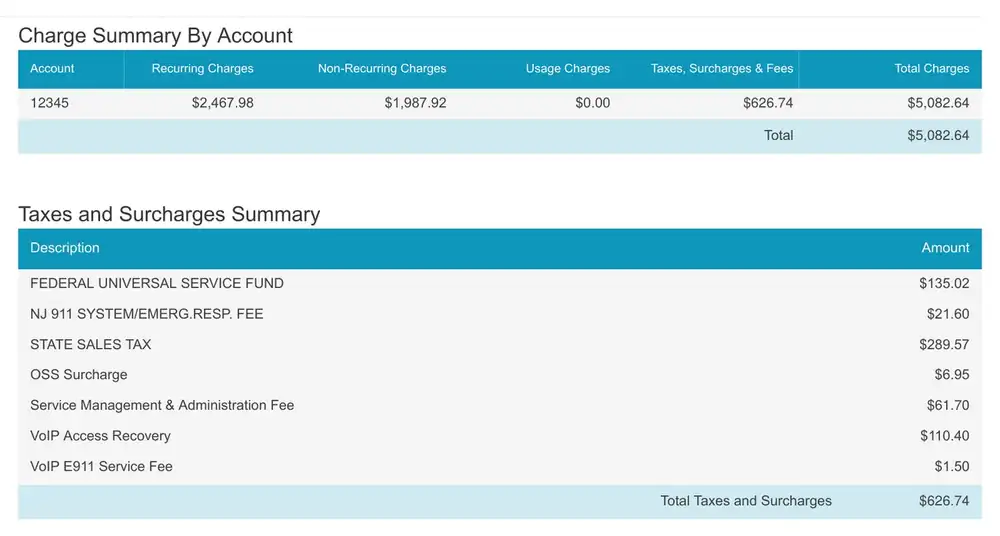 12
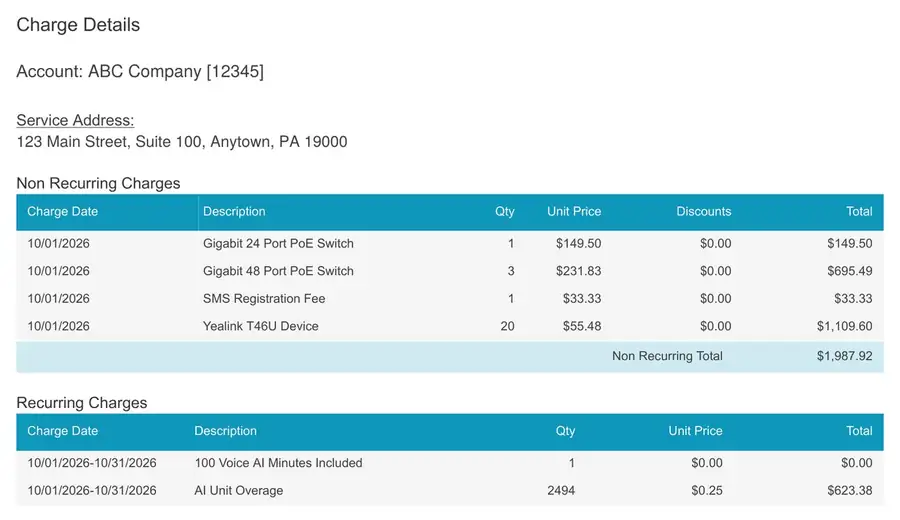 345
- Charge summary by account. Totals for recurring, non-recurring and usage charges, and for taxes, surcharges and fees. If you have several locations, each account gets its own row.
- Taxes and surcharges summary. Each tax and fee for the period, explained in the next section.
- Account and service address. Detailed charges are grouped by account and service location.
- Non-recurring charges. One-time items such as equipment, installation, setup fees and change orders, with the date charged, quantity, unit price and any discount.
- Recurring charges. Your monthly services for the billing period: seats, lines, numbers, internet and add-ons. Items included in your plan show at $0.00. Services added partway through a month are prorated from their start date.
Taxes, surcharges & fees
Your invoice separates what you pay for service from the taxes and cost-recovery fees that apply to it. They fall into three groups.
| Fee (as it appears on your invoice) | How it’s charged | What it covers |
|---|---|---|
| Government taxes | ||
| Federal, state & local taxese.g. STATE SALES TAX, NJ 911 SYSTEM/EMERG. RESP. FEE | Set by government; varies by location | Federal tax on local telecom service, state sales tax and local 911 funding. Federal and state tax are not charged when an exemption certificate is on file. |
| Regulatory & carrier cost recovery | ||
| Federal Universal Service FundFEDERAL UNIVERSAL SERVICE FUND | FCC percentage, set quarterly | A federal program that keeps telecom service available nationwide. It’s a contribution, not a tax, so it applies to tax-exempt accounts too. |
| VoIP Access FeeVoIP Access Recovery | $4.60 per line, call path or trunk, monthly | Combines number portability, regulatory recovery (FCC fees, STIR/SHAKEN robocall protection, CALEA, CPNI) and access recovery for connecting calls with other carriers. |
| E911 Service FeeVoIP E911 Service Fee | $0.50 per E911 registration, monthly | Keeps your numbers and service addresses registered so 911 calls reach the right dispatch center. |
| NetCarrier service fees | ||
| Operations System SupportOSS Surcharge | $6.95 per account, monthly | The systems that provision, monitor, support and bill your services. A flat fee, never prorated. |
| Service Management & AdministrationService Management & Administration Fee | 2.5% of monthly recurring charges | Covers moves, adds, changes and deletes with no per-request charge. See below. |
| Broadband Administration Fee | $7.75 monthly | Only when NetCarrier bills and manages a third-party broadband connection (for example Comcast or Optimum). |
Example from the sample invoice
An account with 23 call paths, 1 analog line and 3 E911 registrations:
| VoIP Access Recovery24 × $4.60 | $110.40 |
| VoIP E911 Service Fee3 × $0.50 | $1.50 |
| OSS Surcharge1 account | $6.95 |
| Service Management & Administration Fee2.5% × $2,467.98 (monthly service total) | $61.70 |
FUSF and government taxes are calculated on top and vary by period and service location. Current charges + surcharges + taxes = the invoice amount.
About the SMA fee
The SMA fee replaces per-request charges for administrative work, including call flow and auto attendant updates, feature and configuration changes, adding or removing services, and administrative account updates.
Prefer to pay per request? Opt out with the SMA opt-out form. Opted-out accounts pay $99.00 per non-outage administrative request. Restoring service during an outage is never charged.
NetCarrier service fees are governed by the General Terms and Conditions of Service, Section 20.1. Rates current as of October 2026; the FUSF percentage changes quarterly.
Customer billing portal
Registering for the portal
Every account gets an email from NetCarrier with a registration link. The link expires, so register soon after it arrives. If yours has expired, contact Account Services for a new one.
First time in? Do these two things
Create your security PIN on the Additional Information tab of Profile. We use it to verify you when you call about your account or open a ticket.
Add a payment method with + Create Payment Profile on the dashboard, or under Profile. You can turn on AutoPay at the same time.
Signing in later
Go to netcarrier.com and select Login > Customer billing portal, or bookmark myportal.
Forgot it? Select Forgot Password? on the sign-in screen.
Prefer not to register?
You’ll still get your invoice as a PDF by email, with a one-time payment link. Paper invoices still go to your billing address unless you’ve opted out, and you can still pay by check.
Your dashboard
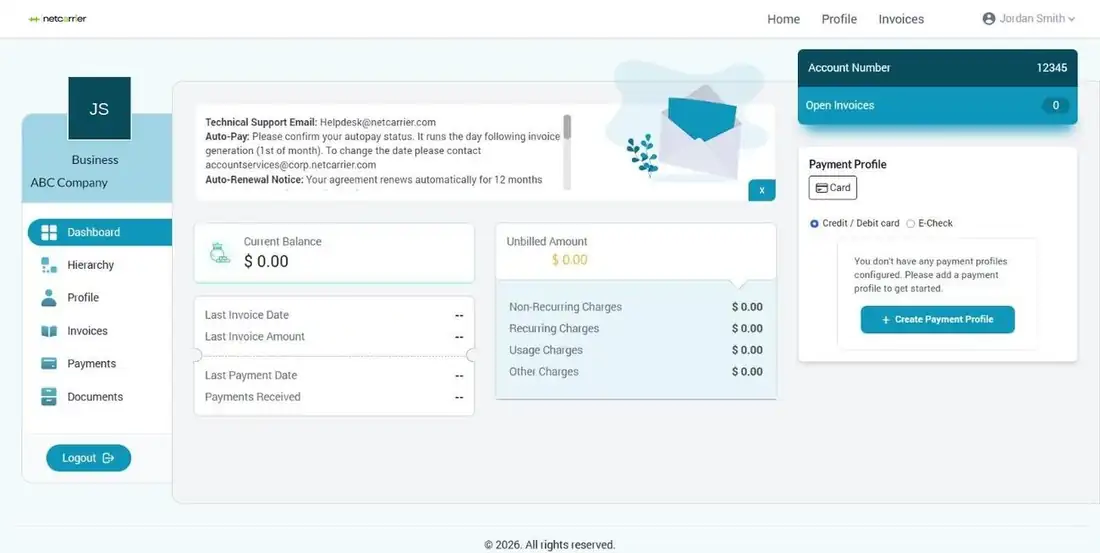 1234567
- Menu. Move between Dashboard, Hierarchy, Profile, Invoices, Payments and Documents.
- Notices. Important messages from NetCarrier, such as AutoPay timing and rate changes.
- Current balance. What’s owed on the account today.
- Last invoice and payment. Date and amount of your most recent invoice and payment.
- Unbilled amount. Charges since your last invoice, split into non-recurring, recurring, usage and other.
- Account number and open invoices. Have your account number ready when you contact us.
- Payment profile. Your saved card or e-check, or a shortcut to add one.
Invoices, payments & documents
Your billing history is one click away in the menu on the left side of the portal.
Lists your invoices. Use Search to find a specific one. Your dashboard also shows the date and amount of your last invoice and how many invoices are open.
Your payment history, including payments made online, by AutoPay and by check. Use Search to find a specific payment.
Account documents NetCarrier shares with you through the portal.
Paying your bill
AutoPay
The easiest way to pay. Save a card or bank account under Profile and turn on AutoPay. Your bill is paid automatically each month.
Pay online
Sign in to the portal and pay with a saved card or bank account (ACH/e-check).
Pay from your invoice
Use the Click To Pay Now link on your emailed invoice to make a one-time payment, with or without a portal login.
Pay by check
Make checks payable to NetCarrier, PO Box 780840, Philadelphia, PA 19178. Include your account number or the payment stub. Missing it delays posting.
When AutoPay runs
Invoices generate on the 1st of the month, and AutoPay runs the evening the invoice is generated. To change your draft date, email accountservices@
Accepted payment methods
Visa, Mastercard, American Express and Discover credit and debit cards, and bank accounts by e-check (ACH). A $3.95 processing fee applies to each card payment.
Managing your account
Saving a card or bank account
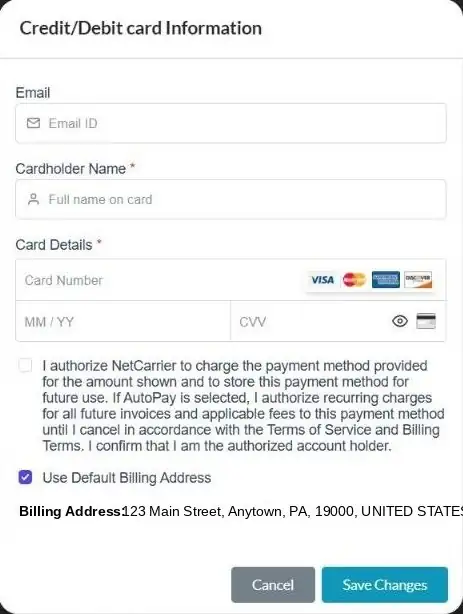
Credit or debit card
- Go to Profile and open the Payment tab.
- Under Credit / Debit card, select Card.
- Enter the cardholder name and card details, check the authorization box and select Save Changes.
A $3.95 processing fee applies to each card payment.
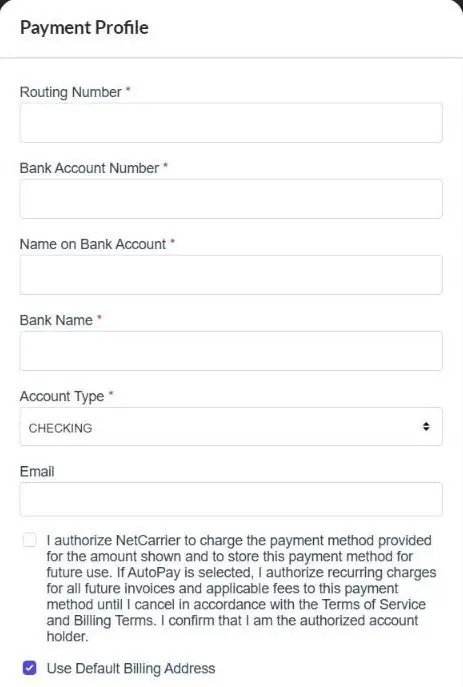
Bank account (e-check)
- On the Payment tab, select Add Echeck details.
- Enter the routing number, account number, name on the account, bank name and account type.
- Check the authorization box and select Save Changes.
Profile, addresses & contacts
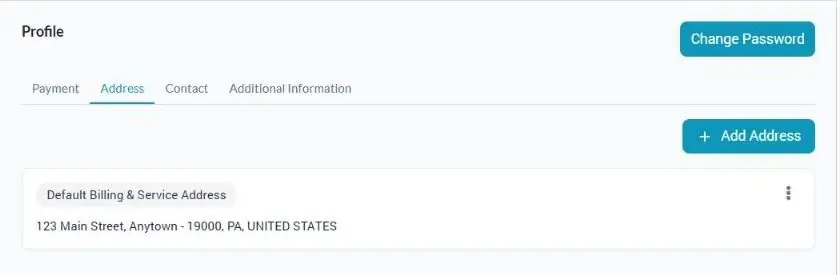
Account details and addresses
The left panel of Profile shows your status, account number, billing cycle, payment terms and billing day. On the Address tab, select Add Address to add a location, or use the ⋮ menu on an address to edit it.
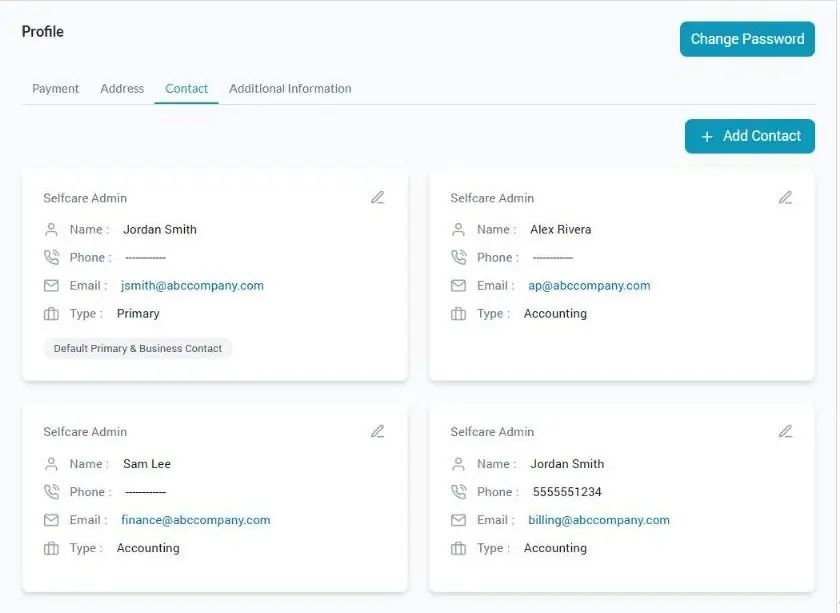
Billing contacts
On the Contact tab, select Add Contact to give someone on your team access, such as accounts payable. Use the pencil icon to update a contact’s name, phone or email.
Security PIN & password
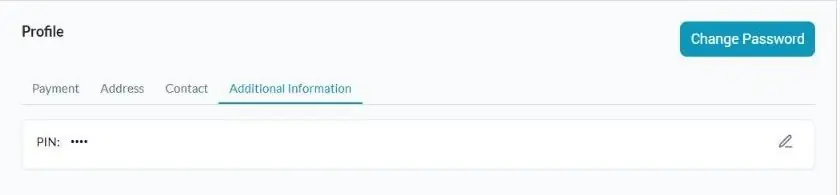
Your security PIN
Create or change your security PIN on the Additional Information tab of Profile using the pencil icon. We use it to verify you when you call about your account or open a ticket, so keep it private.
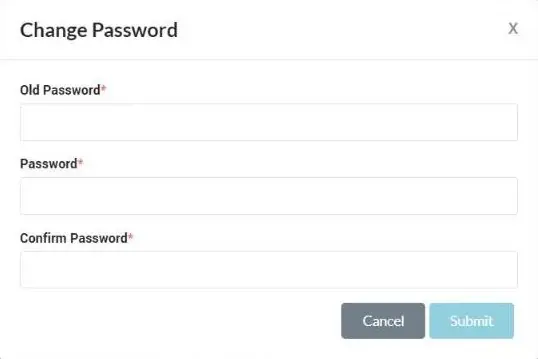
Changing your password
On Profile, select Change Password. Enter your current password, then your new password twice, and select Submit.
Multiple accounts & locations
If you have more than one NetCarrier account, for example one per location, they’re linked under a single parent account.
How it works
Each account keeps its own invoice and its own portal access. The Hierarchy page in the portal shows the accounts linked to yours.
Want one bill?
We can set up consolidated billing and a single portal view across your accounts. Contact Account Services at accountservices@
On your invoice
A consolidated invoice lists each account on its own row in the Charge Summary By Account, with its charges grouped by service address in Charge Details.